
Complex Web Mini Programs
This page aims to guide developers on how to use frontend engineering tools to build complex Web Mini Programs.
Before operating on this page, please ensure you have learned the following:
- Vite: A modern frontend build tool with extremely fast development experience.
- Vue: A progressive JavaScript framework for building user interfaces.
- PNPM: An efficient JavaScript package manager.
About Complex Web Mini Programs
Complex Web Mini Programs allow developers to build more flexible and complex pages through frontend engineering tools like Vite and Vue. These pages typically contain dynamic content, interactive logic, and real-time communication with the backend, and can be highly customized according to needs.
Compared to the beginner tutorial, complex Web Mini Programs provide more functionality and flexibility, suitable for application scenarios requiring more complex frontend operations and interactions.
Creating Web Mini Program Extension Package
In this demonstration, we will create a Web Mini Program type extension. The function of this extension is to call MathService from the beginner tutorial and return the addition calculation result displayed on the page.
TIP
MathPage in the following text is the name of the Web Mini Program extension we are about to create.
Step 1: Create Empty Vite+Vue Project
You can create it manually from scratch or modify the template in the "demo" directory in the extension development package repository.
pnpm create vue@latestThis will start Vue's official project scaffolding tool. Here's an example of the project creation process:
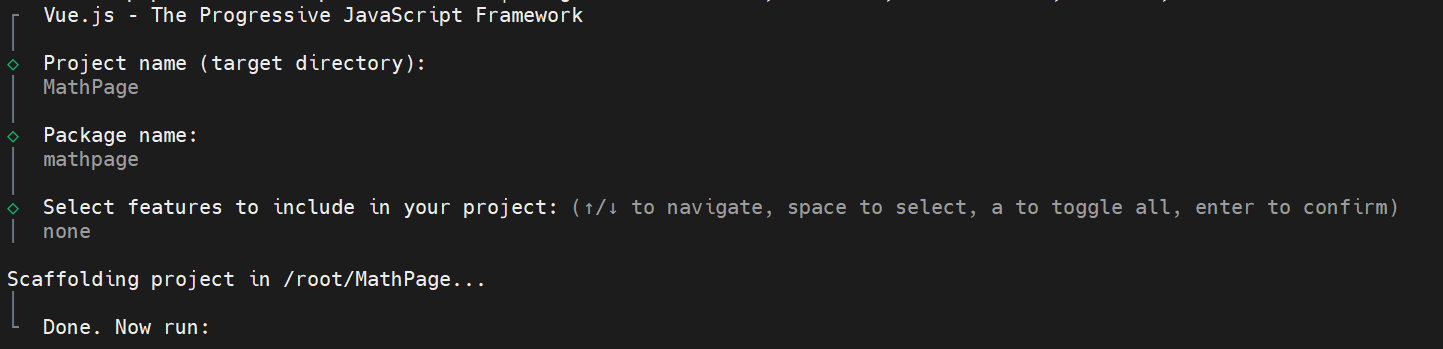
Step 2: After completing initialization, enter the project directory and install dependencies
cd MathPage
pnpm i
pnpm i @agilebot/extension-runtime
Step 3: Write Code
Create addition calculator component:
<script setup lang="ts">
import { ref } from 'vue';
import { callEasyService } from '@agilebot/extension-runtime';

const a = ref(0);
const b = ref(0);
const c = ref(0);

const handleCalculate = async () => {
  const result = await callEasyService('math', 'add', {
    a: a.value,
    b: b.value
  });
  c.value = result;
};
</script>

<template>
  <div class="math">
    <h1>Addition Calculator</h1>

    <div class="container">
      <label for="inputA">a:</label>
      <input type="number" v-model="a" placeholder="Enter first number" />

      <label for="inputB">b:</label>
      <input type="number" v-model="b" placeholder="Enter second number" />

      <button @click="handleCalculate">Calculate a + b</button>
    </div>

    <div class="result">
      <p>
        Result: <span>{{ c }}</span>
      </p>
    </div>
  </div>
</template>

<style scoped>
.math {
  padding: 20px;
  display: flex;
  flex-direction: column;
  align-items: center;
}

.container {
  margin-top: 20px;
}

input {
  padding: 5px;
  margin: 10px;
  font-size: 1em;
}

button {
  padding: 5px 10px;
  font-size: 1em;
  cursor: pointer;
}

.result {
  margin-top: 20px;
  font-size: 1.2em;
}
</style>
Import Math component in the homepage:
<script setup lang="ts">
import Math from './components/Math.vue';
</script>

<template>
  <Math />
</template>
It is worth noting that you need to modify the base option in the vite.config.ts configuration:
import { fileURLToPath, URL } from 'node:url'

import { defineConfig } from 'vite'
import vue from '@vitejs/plugin-vue'
import vueDevTools from 'vite-plugin-vue-devtools'

// https://vite.dev/config/
export default defineConfig({
  base: './',
  plugins: [
    vue(),
    vueDevTools(),
  ],
  resolve: {
    alias: {
      '@': fileURLToPath(new URL('./src', import.meta.url))
    },
  },
})
Step 4: Compile Vue Project
pnpm buildStep 5: Package and Install
For extension packaging, please refer to Packaging and Installation
Note that when packaging, the entry file should be selected as dist/index.html .