
Development Environment Setup
Extension development requires appropriate development environments, such as Node.js and Python.
DANGER
When extension web pages (including Web Mini Programs and General Services ) are open, physical buttons and shortcuts on the industrial teaching pendant will be disabled.
To enable shortcuts in your extension, please refer to: Enable Shortcuts
VSCode Download and Installation
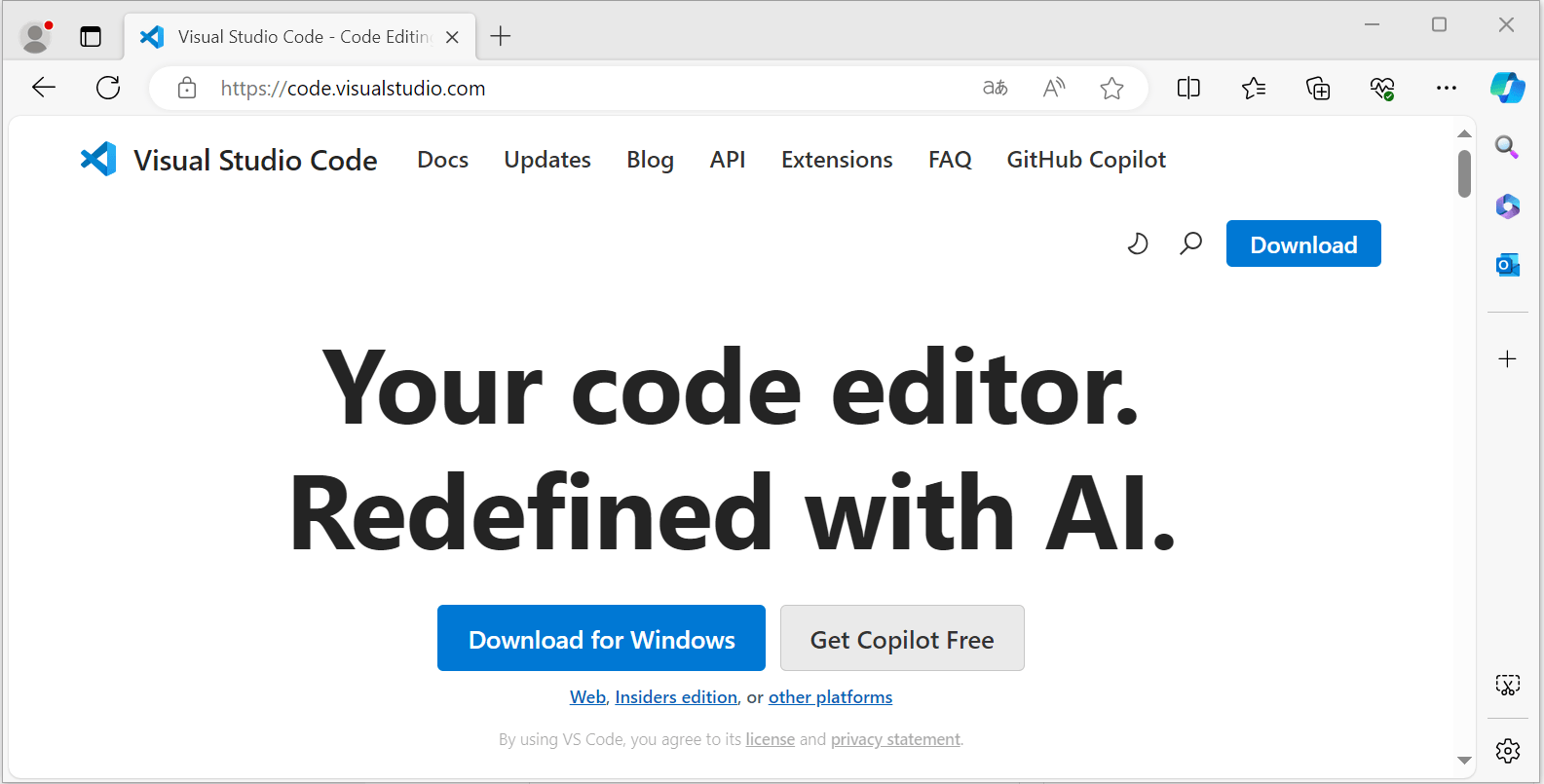
- Download the VSCode installation file
Visit the official website: https://code.visualstudio.com/
Download the latest version of VSCode
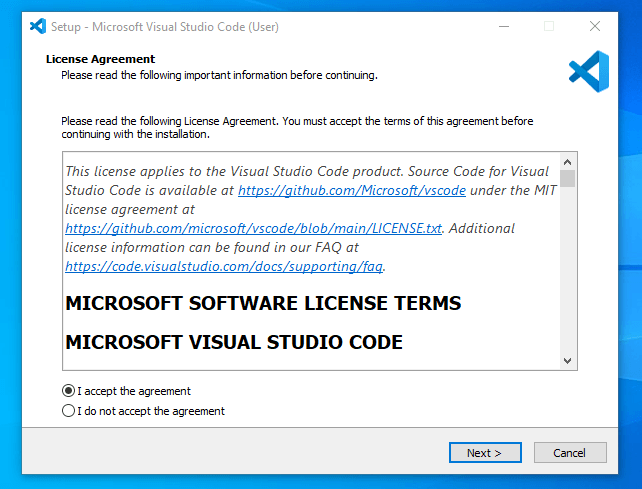
- After downloading, click to run and follow the prompts for installation
VSCode Extension Installation
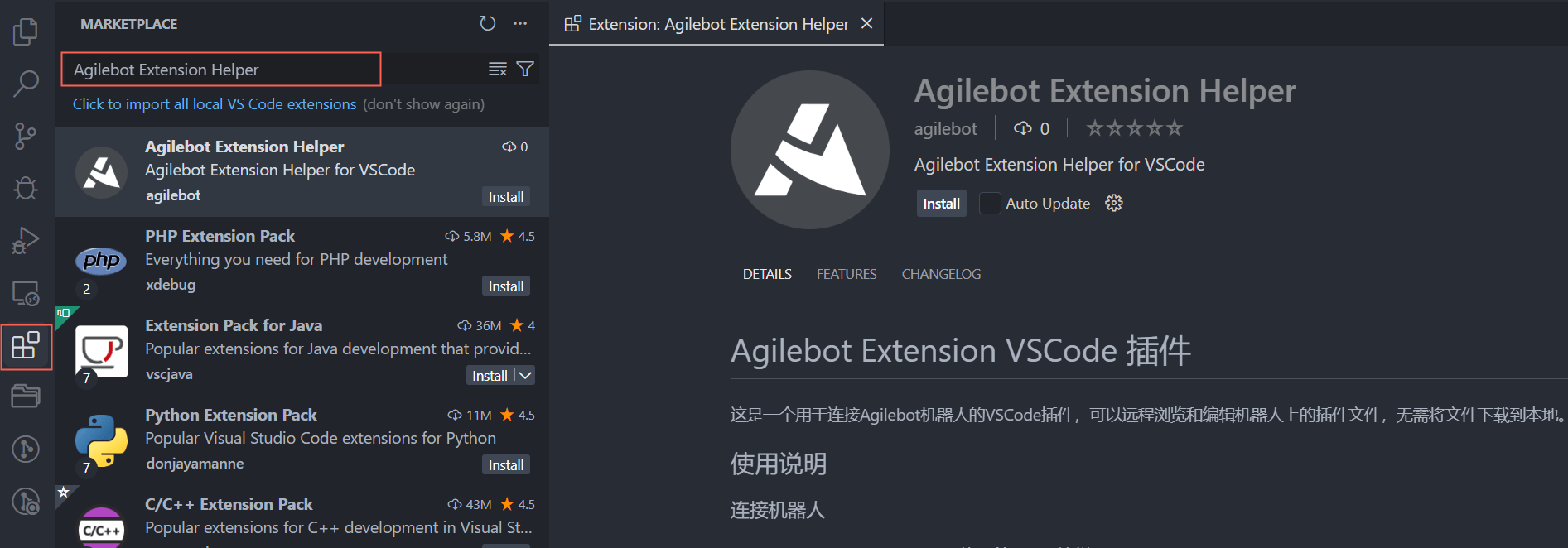
- Search for Agilebot Extension Helper in the VSCode extension marketplace and install it
Node.js Download and Installation
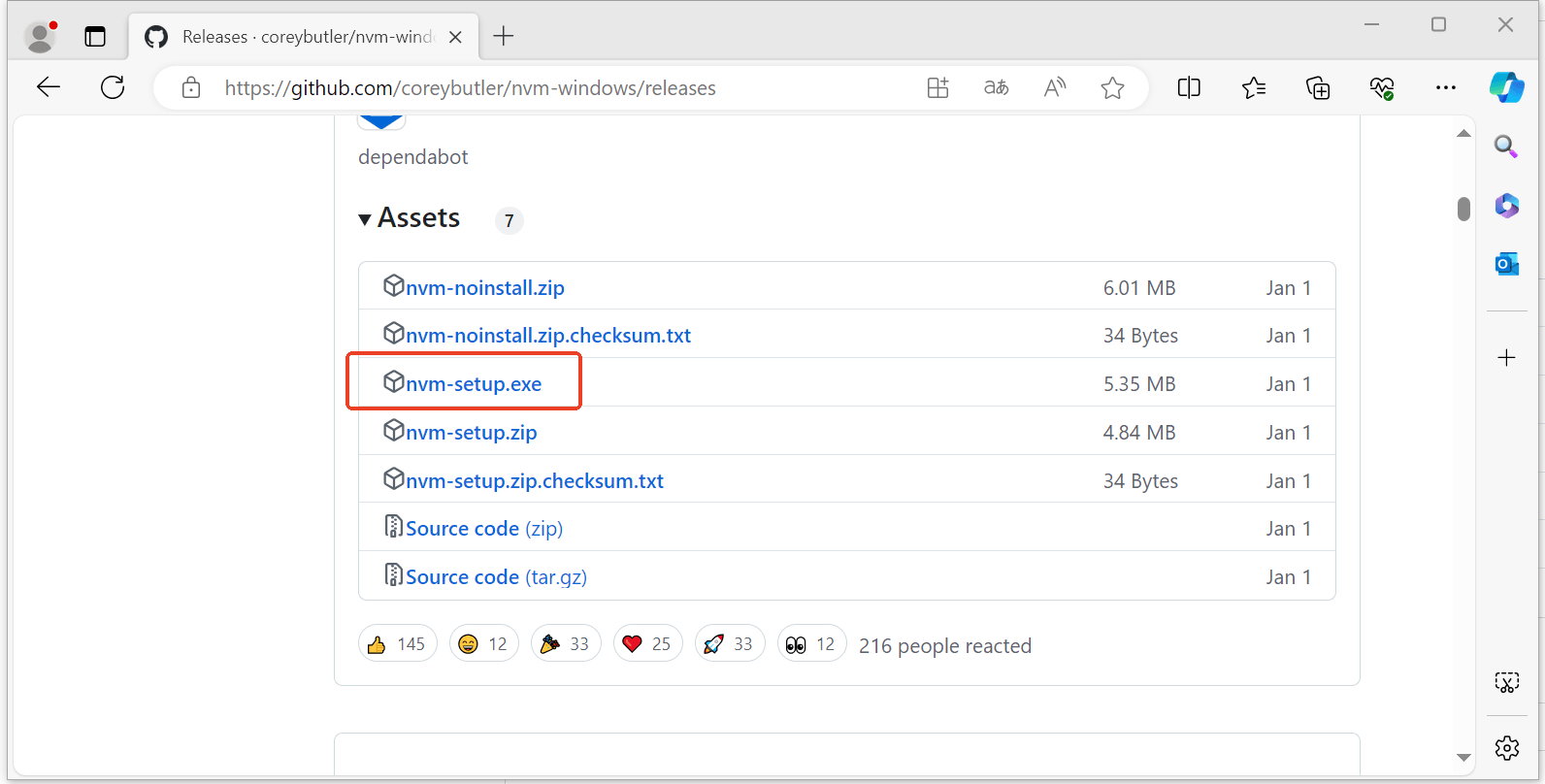
- Download the nvm installation file
On GitHub: https://github.com/coreybutler/nvm-windows/releases
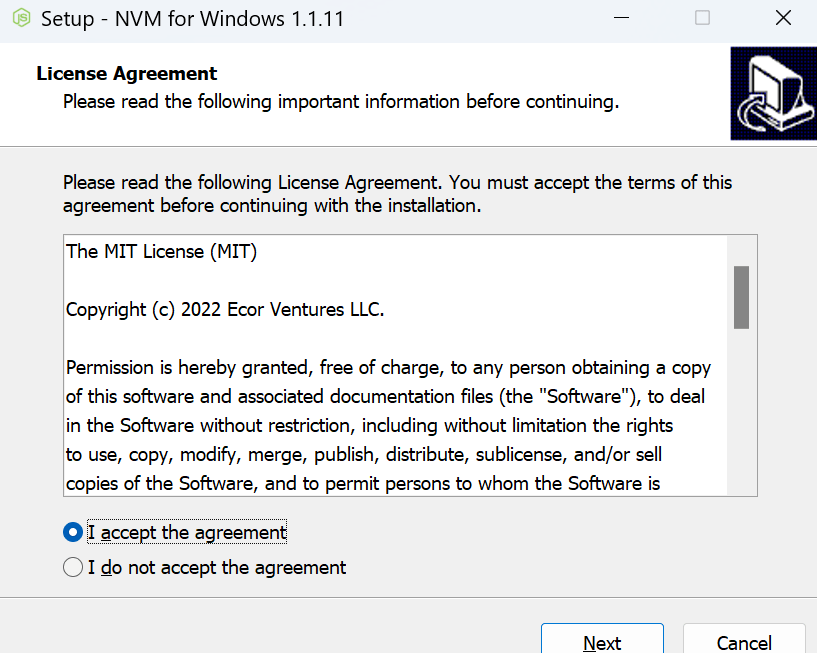
Download nvm-setup.exe
- After downloading, click to run and follow the prompts for installation
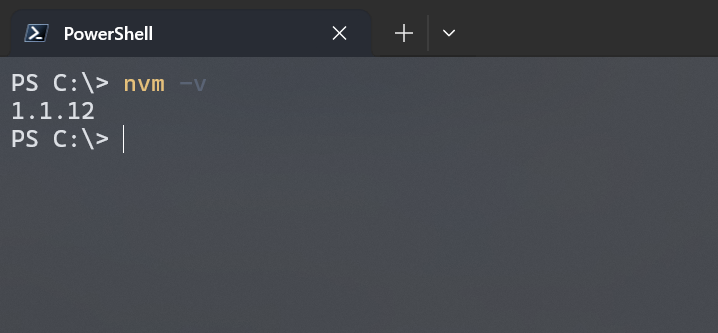
- After installation, enter
nvm -vin the terminal. If you can see the version number, the installation was successful
- Set the nvm mirror source by entering the following command in the terminal
bash
nvm node_mirror https://npmmirror.com/mirrors/node/- Use nvm to install node by entering the following commands in the terminal
bash
nvm install 20
nvm use 20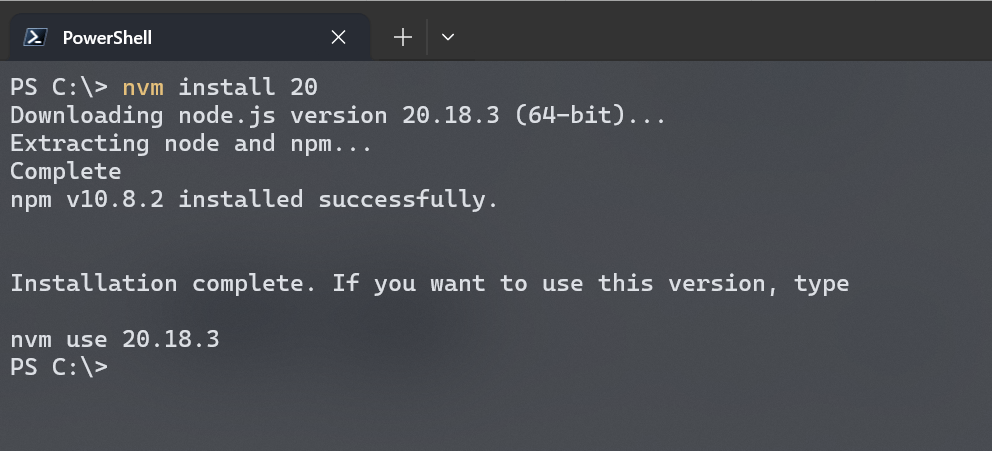
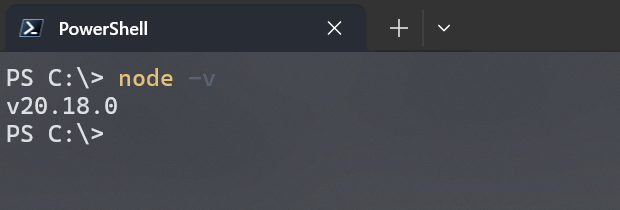
- After installation, enter
node -vin the terminal. If you can see the version number, the installation was successful
- Set the node mirror source by entering the following command in the terminal
bash
npm config set registry https://registry.npmmirror.com- Enable corepack by entering the following command in the terminal
bash
corepack enable- Set the corepack mirror source by setting the following environment variable in system settings
bash
COREPACK_NPM_REGISTRY=https://registry.npmmirror.com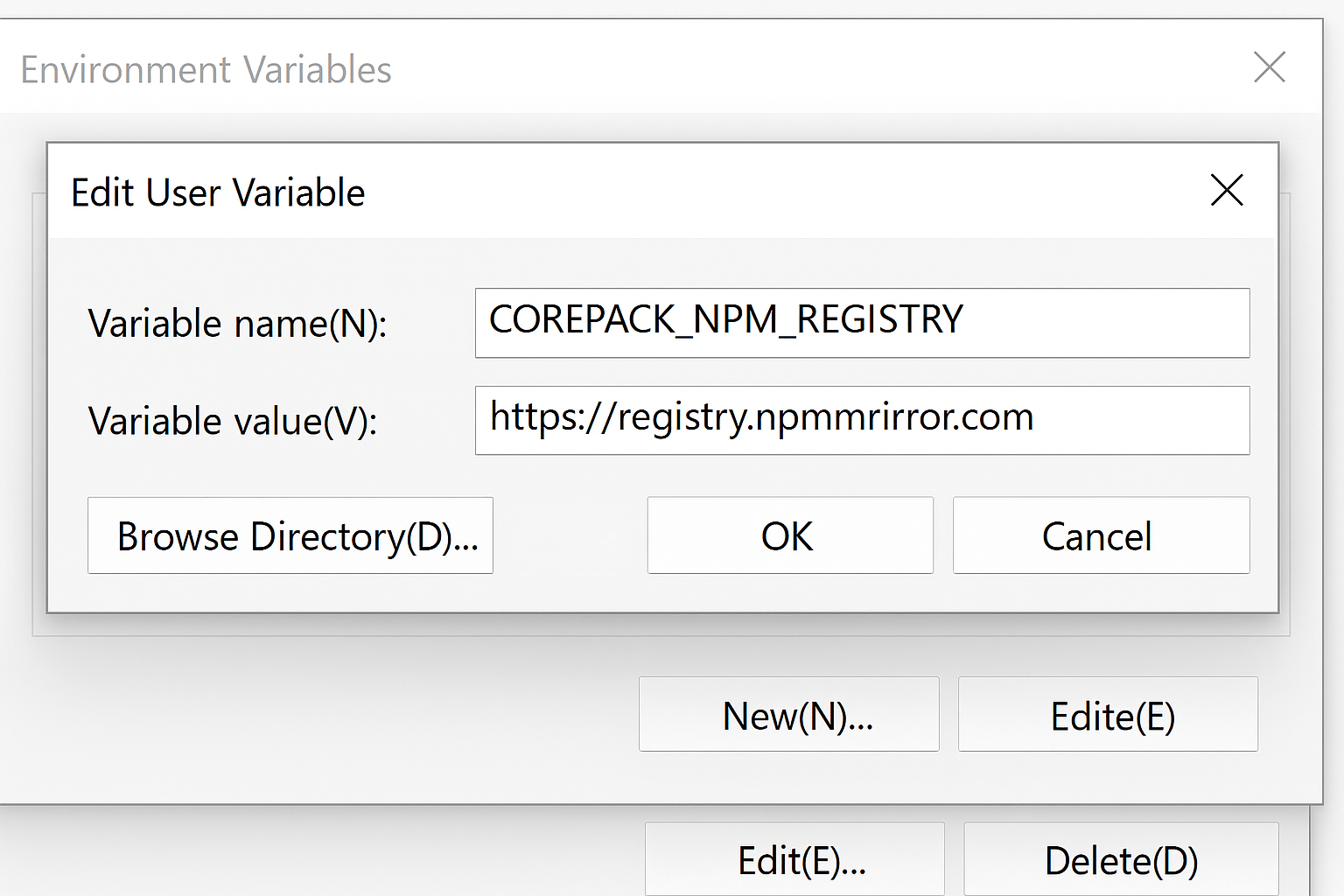
Python Download and Installation
- Download the Python installation file
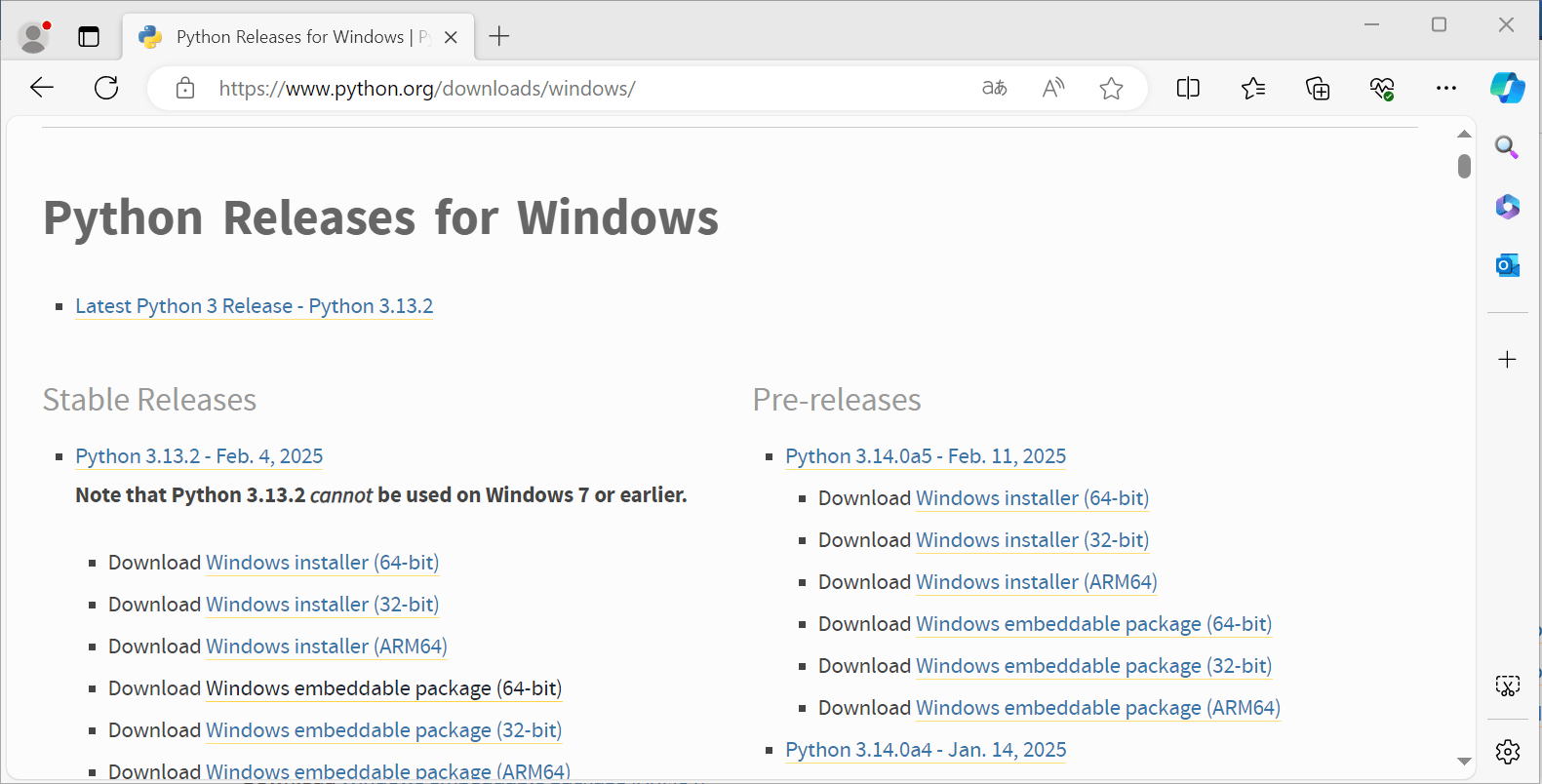
Visit the official website: https://www.python.org/downloads/windows/
Download the latest version of Python
- After downloading, click to run and follow the prompts for installation