Calling SDK in Easy Service
This page aims to guide developers on how to call the Agilebot SDK in Easy Service and call through program instructions.
Creating Easy Service Extension Package
In this demonstration, we will create an Easy Service type extension. The function of this extension is to provide an addition operation interface and write to a certain R register.
TIP
MathServiceComplex in the following text is the name of the Easy Service extension we are about to create.
Step 1: Create Extension Folder
First, we need to create a basic extension folder that contains a config.json configuration file and a Python file. Note that in Easy Service, the Python file name must be the same as the extension name.
You can create it manually from scratch or modify the template in the "demo" directory in the extension development package repository.
Directory structure:
- MathServiceComplex
- config.json
- MathServiceComplex.py
from Agilebot.IR.A.arm import Arm
from Agilebot.IR.A.status_code import StatusCodeEnum
from Agilebot.IR.A.sdk_classes import Register

# Get global logger instance, can only be used in Easy Service
logger = globals().get('logger')
if logger is None:
    # For local debugging, use built-in logging library
    import logging
    logger = logging.getLogger(__name__)


arm = Arm()
ret = arm.connect("10.27.1.254")
if ret != StatusCodeEnum.OK:
    logger.error("Connection failed")


def add(a: int, b: int) -> int:
    """
    Perform addition operation on two integers and write to register

    Parameters:
    - a (int): First addend
    - b (int): Second addend

    Returns:
    - int: Addition result
    """
    try:
        result = a + b
        # Write result to register
        register = Register()
        register.id = 1
        register.name = "math_result"
        register.comment = "Result of addition service"
        register.value = result

        ret = arm.register.write(1, register)
        if ret != StatusCodeEnum.OK:
            logger.error("Failed to update R")


        return result

    except Exception as ex:
        logger.error(ex)
return 0{
"name": "MathServiceComplex",
"type": "easyService",
"scriptLang": "python",
"description": "Math Service",
"version": "0.1"
}Step 2: Package and Install
For extension packaging, please refer to Packaging and Installation
Step 3: Use CALL_SERVICE Instruction to Call
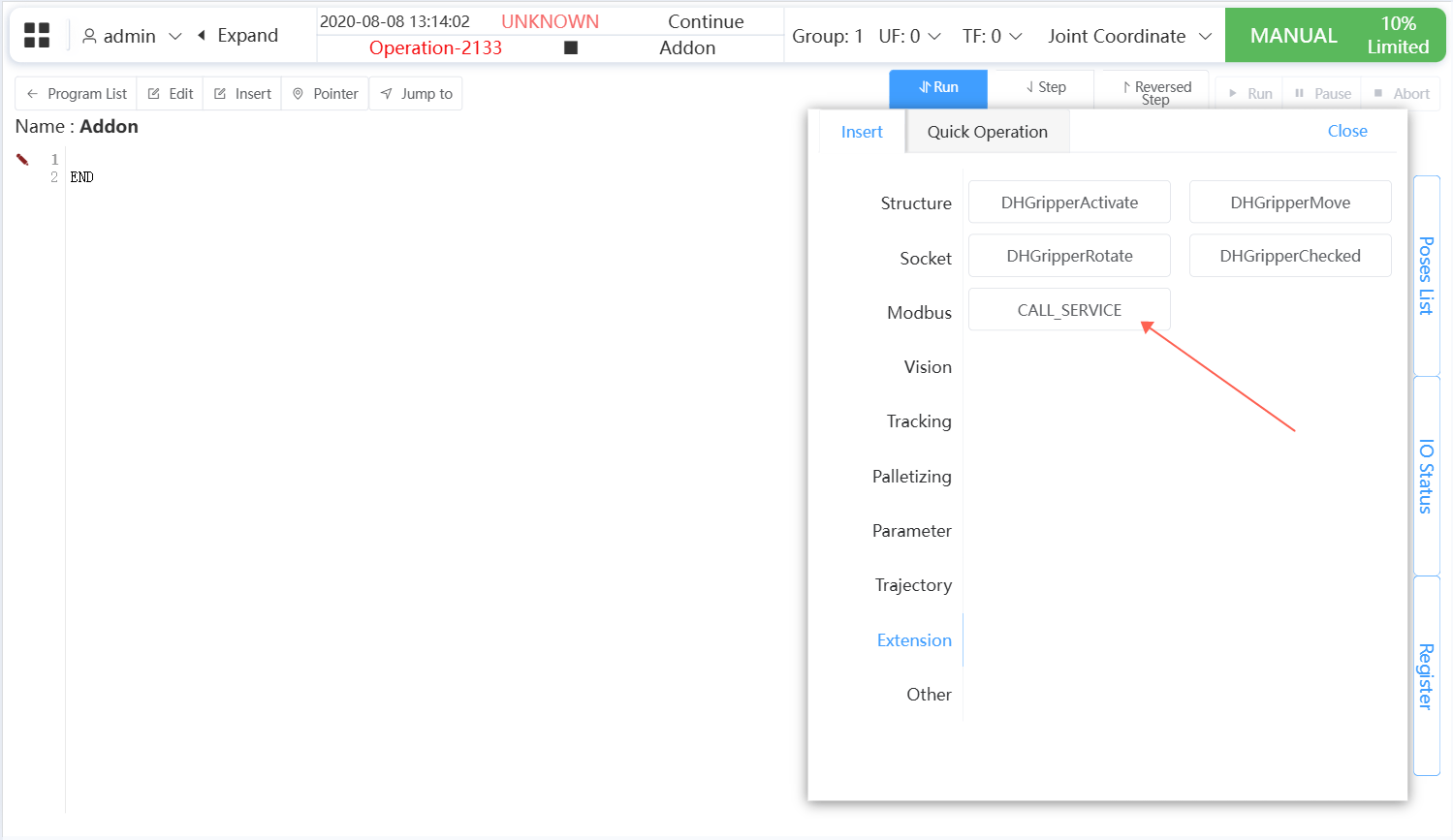
- Select insert instruction
CALL_SERVICE
- Fill in the relevant parameters for the
CALL_SERVICEinstruction
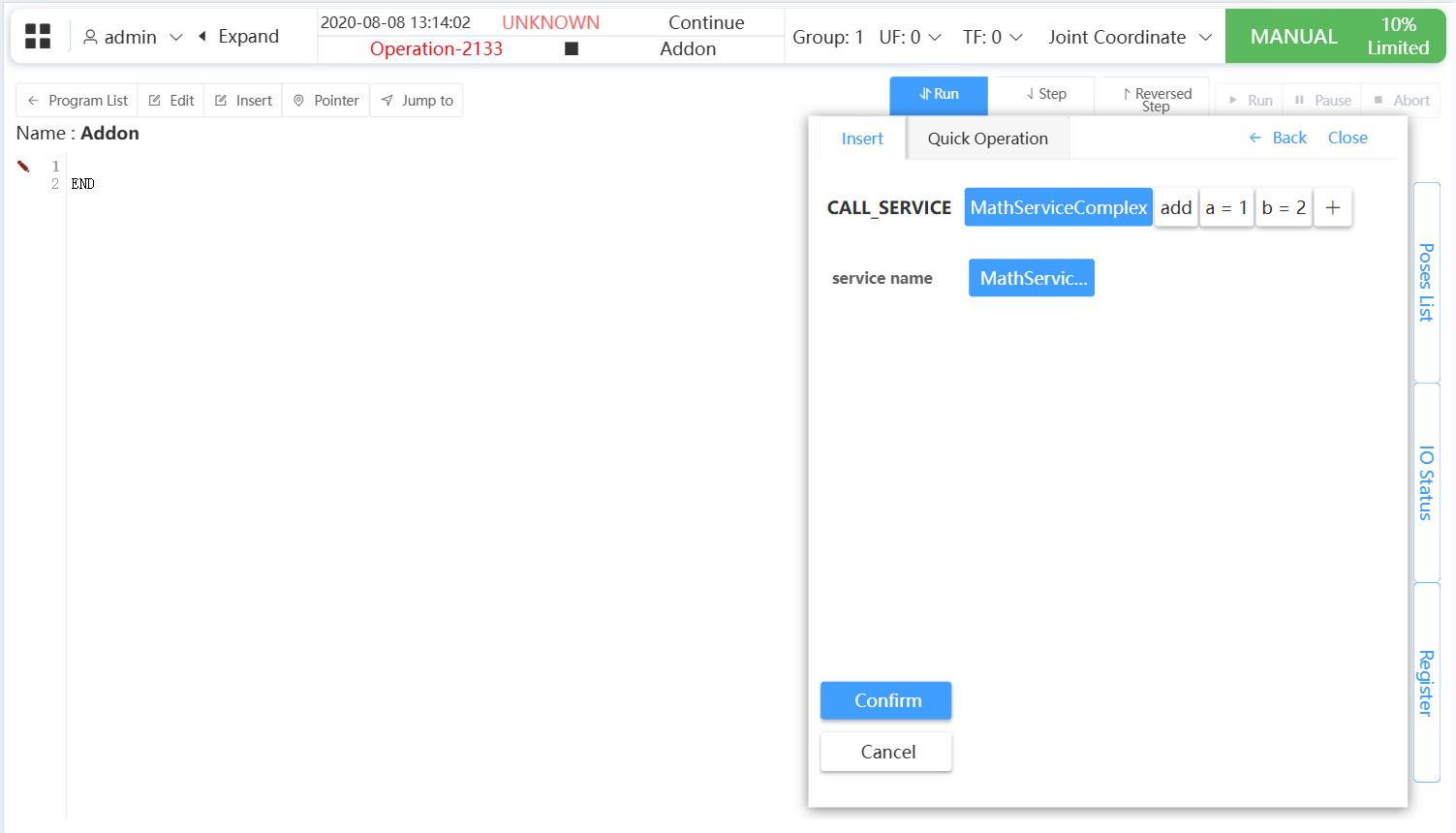
- Service Name: The name of the Easy Service, fill in
MathServiceComplexin this example - Instruction Name: The function name to call in the service, fill in
addin this example - Parameters: The parameter list to pass to the above function name, fill in
a: 1,b: 2in this example
- Click the execute button
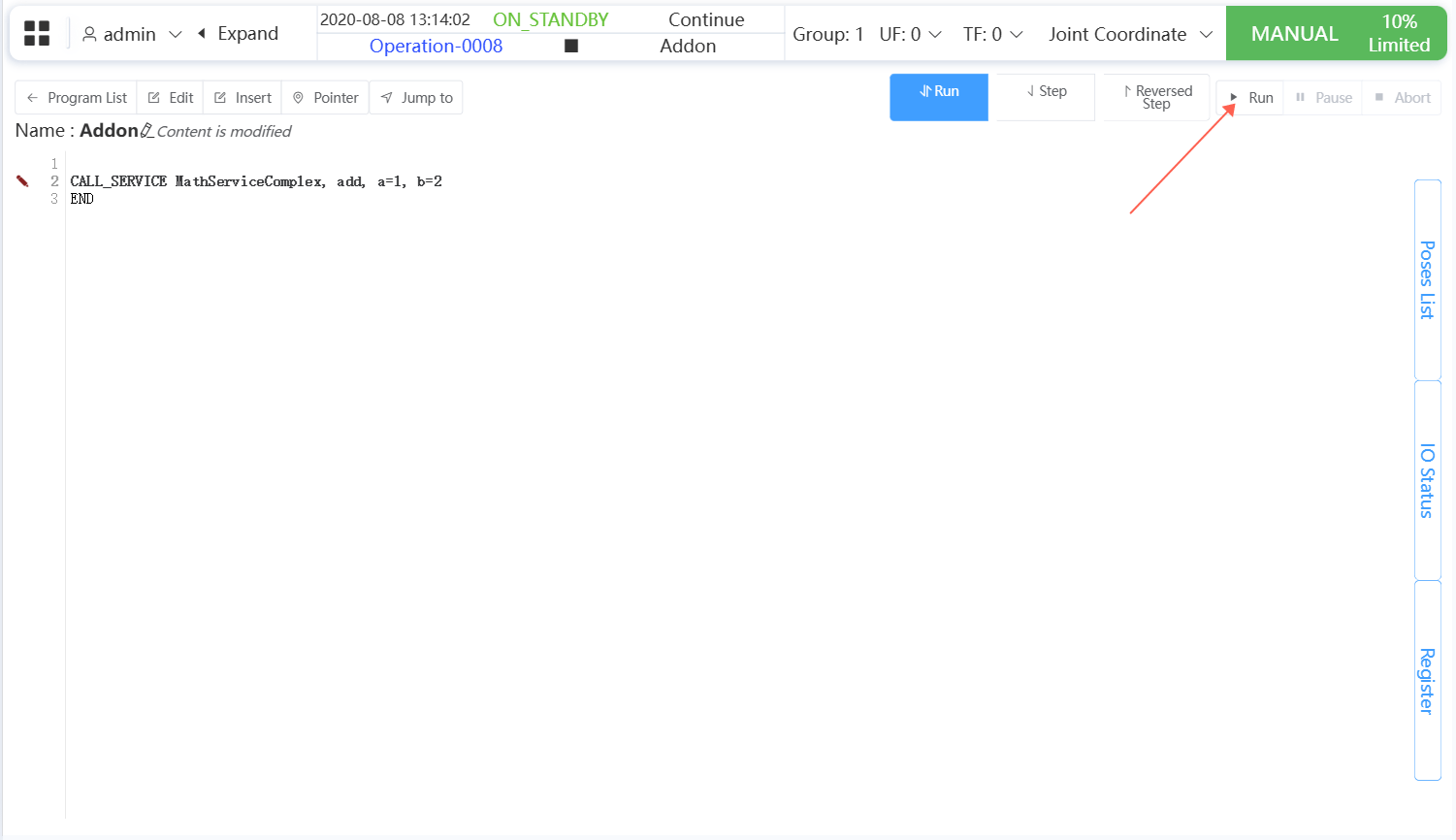
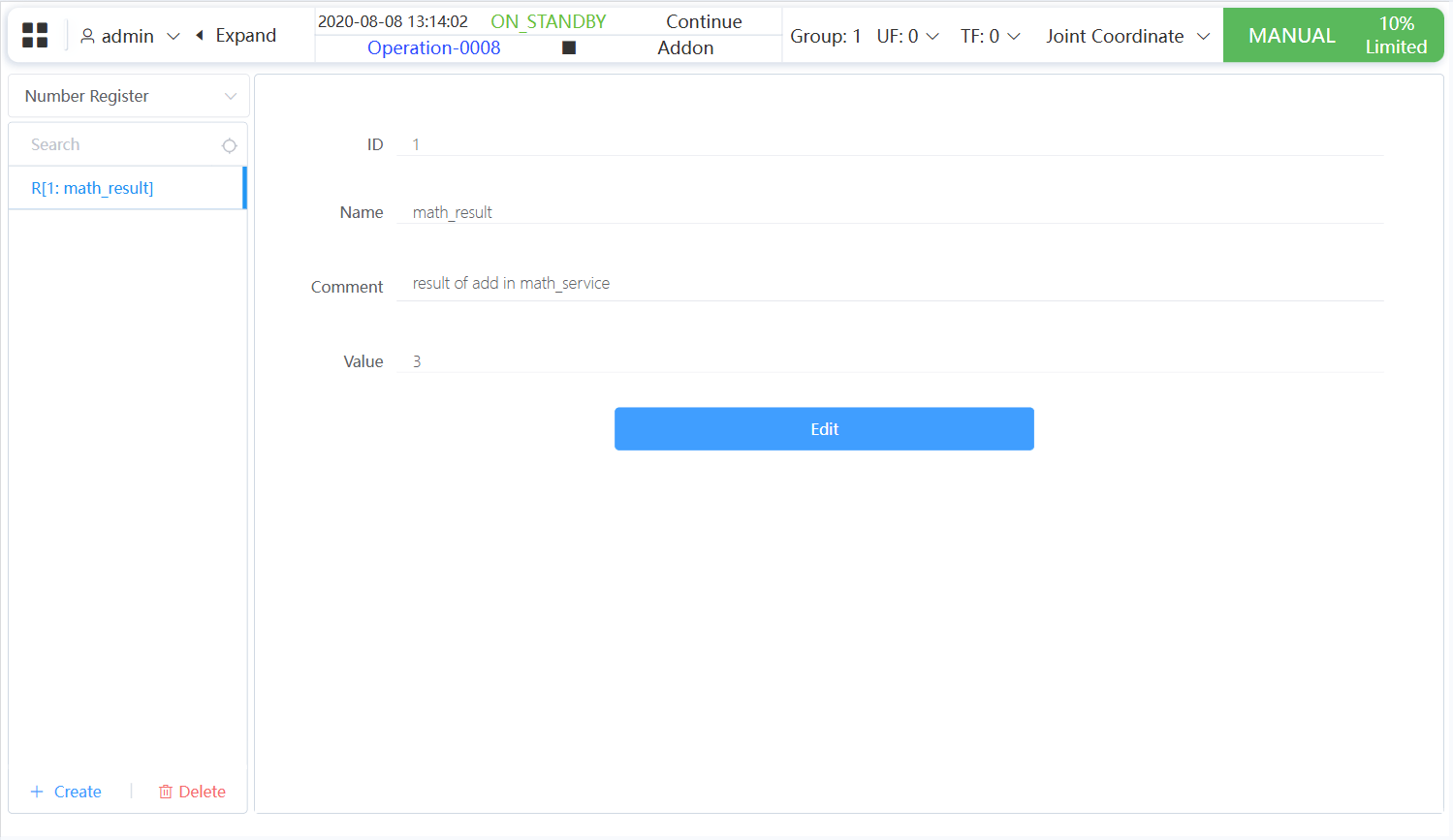
- After the user program executes successfully, the value
3will be written toR[1]